
For people who run more than one coding agent
Five terminal tabs. Two browser tabs.

So, what were we doing here?
Multitask your coding agents without losing your mind.

Run your coding agents side by side on Windows. Find your last question, read the reply, and see which agent is waiting on you.

Windows 10 1809+ / 11 · free · no account · no telemetry · closed source · Claude Code, shells, SSH · ConPTY terminals · status from the CLI's own hook events, not screen scraping · local SQLite data · reading view uses no model

Between agents

Five agents running.
Which one had the migration?

You switch tabs and reread the conversation just to remember what you asked.

Click back into a tab after an hour: what was this one doing, and what did I ask it?
your prompts and its answers, on one page →
Five agents, five half-remembered plans. Which one had the migration?
every conversation on one screen, with its state →
Re-reading 300 lines of scrollback to find the question you asked an hour ago.
tool chatter folded, prompts stand out →
You switch to the other one and lose the thread of this one.
side chat is planned →
A 90-line answer in a terminal font is a chore to read, so you skim it and miss the question.
choose readable type and spacing →
Alt-tab, alt-tab, alt-tab. Wrong window. Alt-tab.
all of them in one window →
You step away for coffee and forget which agent was working on what.
the list, with states, on your phone →
An agent sat on a y/n prompt for 20 minutes. Nobody saw it.
jump to the agent waiting longest →
Tests, ports, branches: each in yet another window you have to go and look at.
keep your test results beside the agents →

Back in this tab after an hour: what was it doing, and what did I ask it?

Jump between your prompts. Fold the tool output.

Your last question, without the scrollback hunt.

Your prompts stand out as cards. Jump from one to the next, or use Read one exchange to focus on the current question and latest reply. Fold tool output when it gets in the way. Choose the font, size, spacing and background for each pane. The reading view keeps the agent's words unchanged; it does not summarize them.
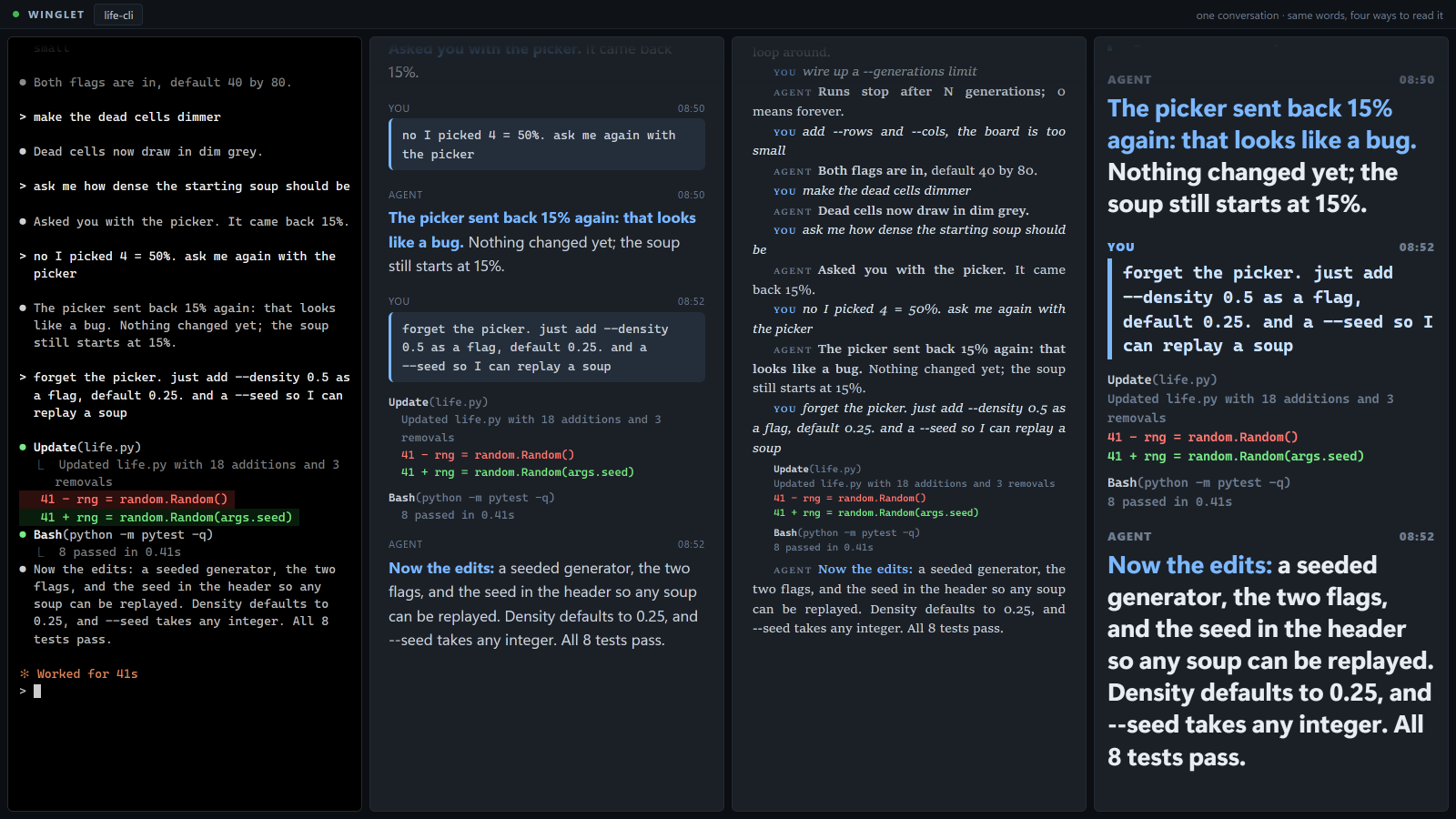
One conversation shown as terminal output and three reading styles, from compact serif to large bold type.

Five agents, five half-remembered plans. Which one had the migration?

See conversations across projects, grouped by whose turn it is.

Find the agent you came back for.

The sidebar shows each agent's status. Click 1 needs you · 12m to jump to the one waiting longest. Enable a catch-up line for a conversation to see where it stopped before opening it. The four-conversation reading grid shown here is planned; the current reading view opens one conversation at a time.
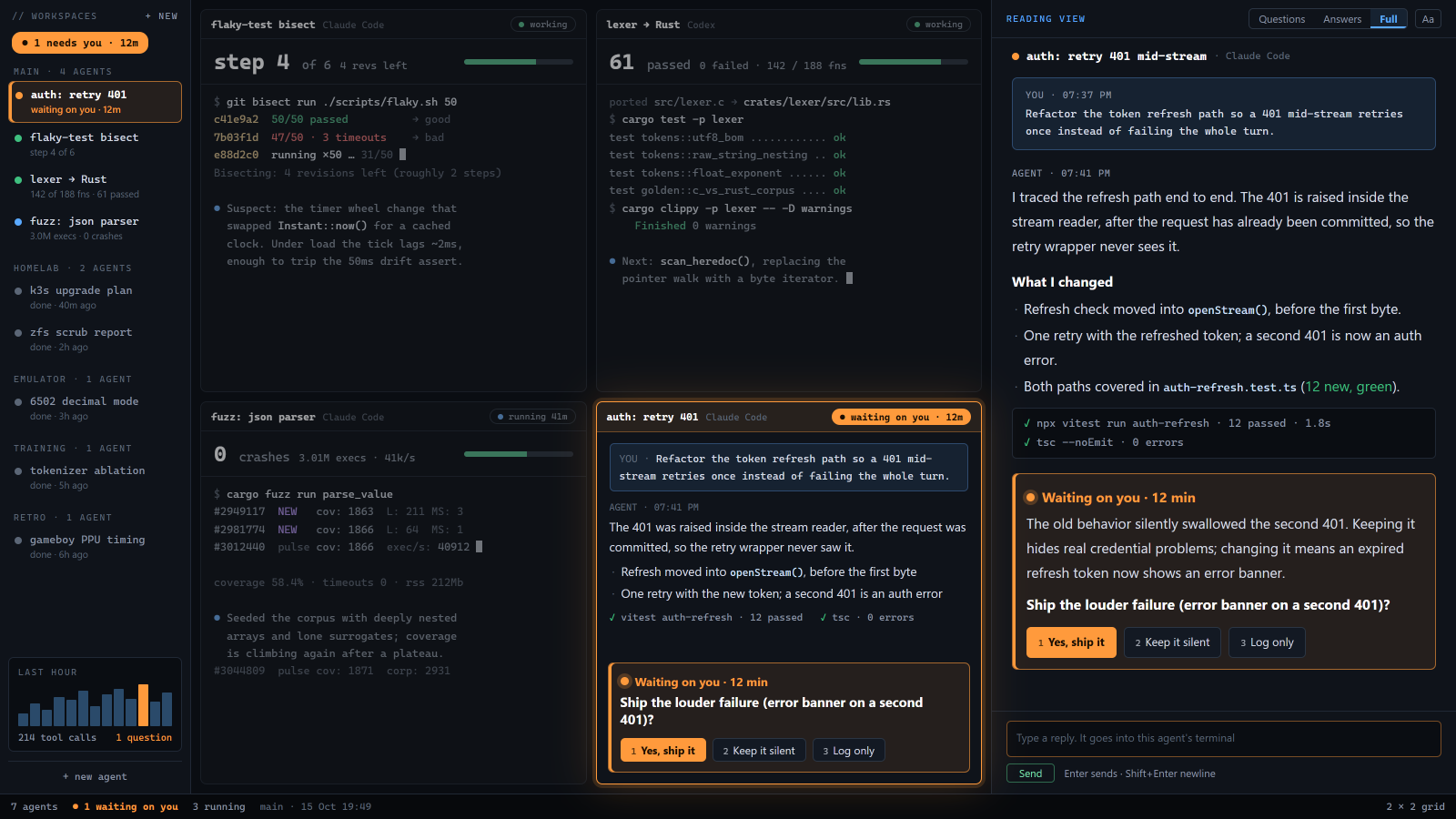
Planned four-conversation grid: auth: retry 401 is waiting 12 minutes; the other panes show a bisect, lexer port and fuzzer.

You switch to the other one and lose the thread of this one.

Check what the agent said without adding to its conversation.

Ask about the migration without sending another prompt.

Coming next; not in the build yet. Ask a small model about the last few turns and get an answer with quotes linked to the transcript. The coding agent will not receive your question. For now, use the reading view or opt-in catch-up line to find where you left off.
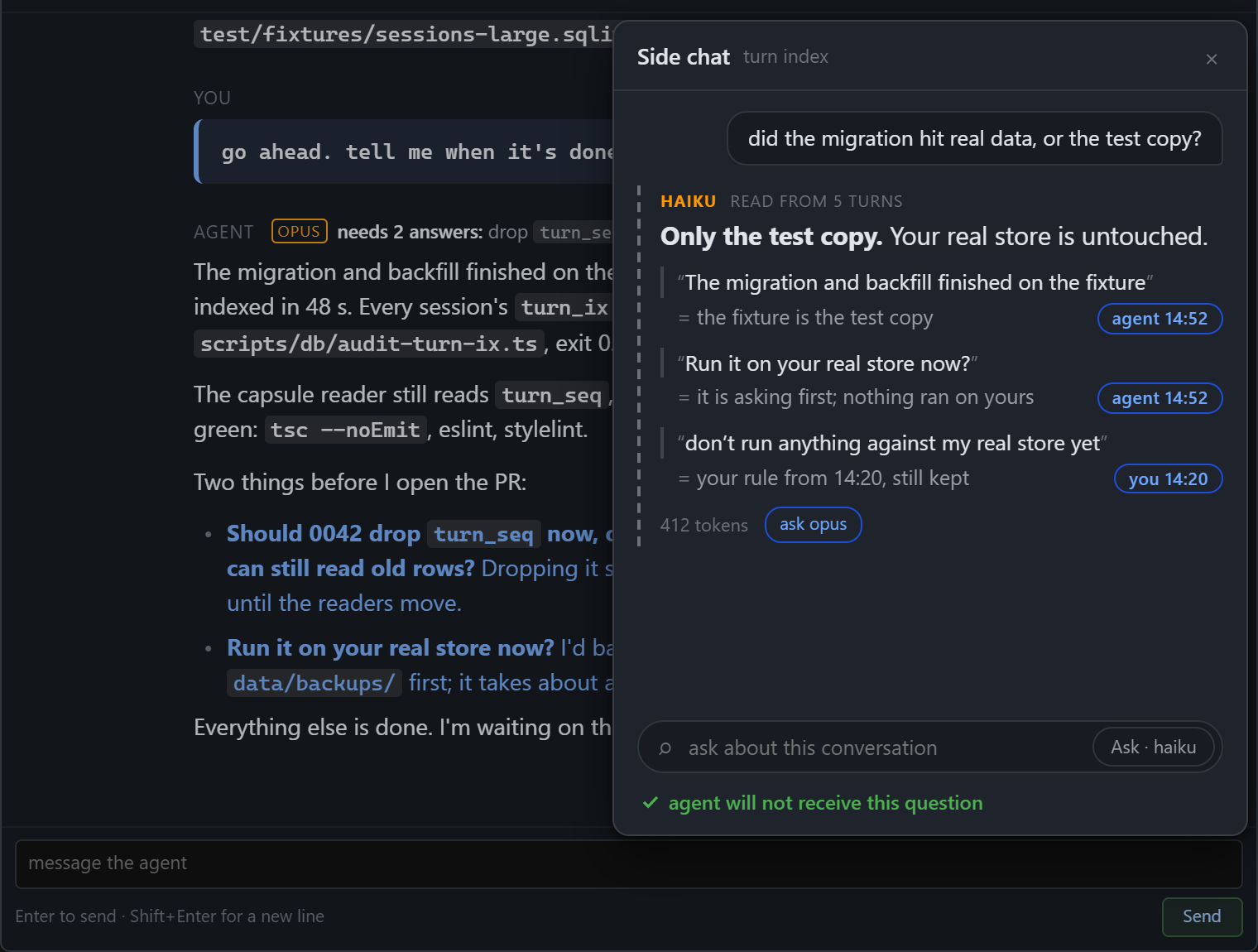
Planned side chat answering a migration question with three linked quotes beside the coding agent conversation.

Alt-tab whack-a-mole. And after a relaunch, rebuilding the whole desk from memory.

Drag a divider. Keep the other agents visible.

Give the busy pane more room.

Keep your agents in one window and resize their panes as work shifts. In the example, parser-crash needs a decision while three other panes stay visible. Your layout and running sessions return after an app relaunch.
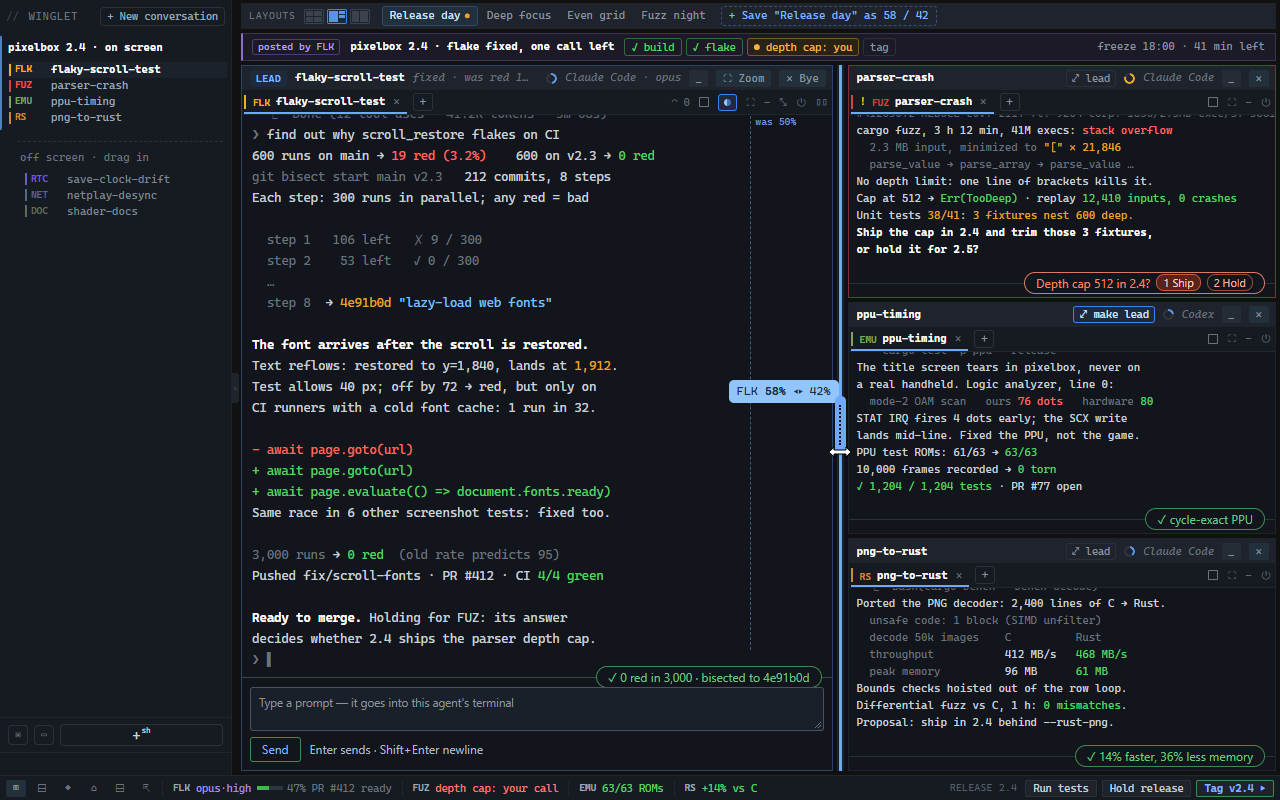
Four terminal panes with a divider at 58/42; parser-crash asks whether to ship a depth cap.

The agent that sat idle for 20 minutes on a y/n question nobody saw.

Get a notification when an agent needs an answer.

See how long an agent has been waiting.

When winglet detects a question, it marks the agent needs you, starts a timer and shows the question with its options. Desktop notifications bring it to your attention; phone push is opt-in. Completion notices include check output or say no check ran. Some CLI dialogs can still be missed; see the detection limits.
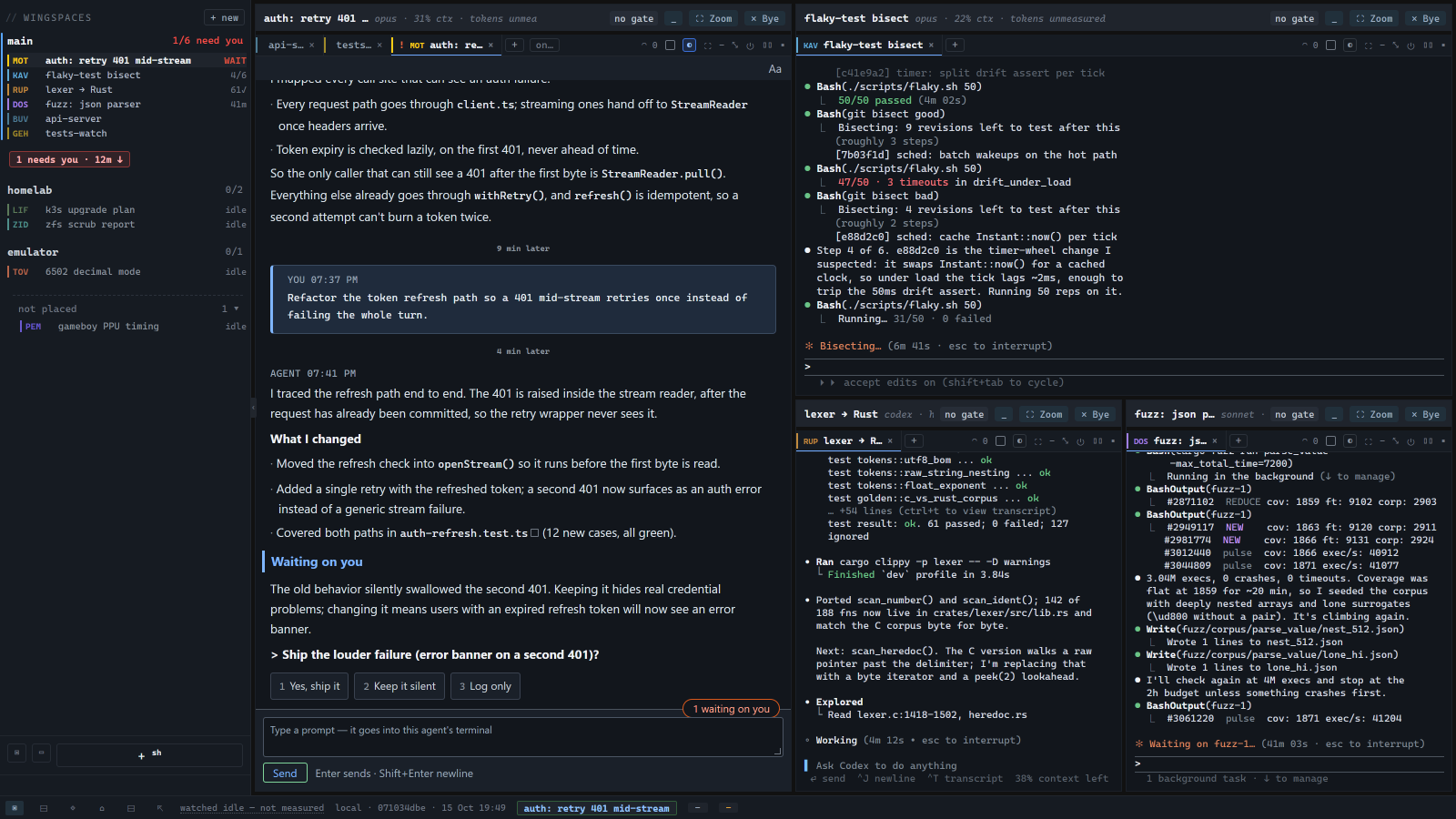
Reading view with an auth question and three reply options beside three terminal panes; the sidebar reports a 12-minute wait.

You step away for coffee and forget which agent was working on what.

Check your agents from your phone on the same network.

Read and reply from the couch.

Pair your phone by scanning a QR code on the desktop. See who needs you, open the question and type a reply while the other agents keep working. The phone view connects to your PC over your LAN, without a relay or account.
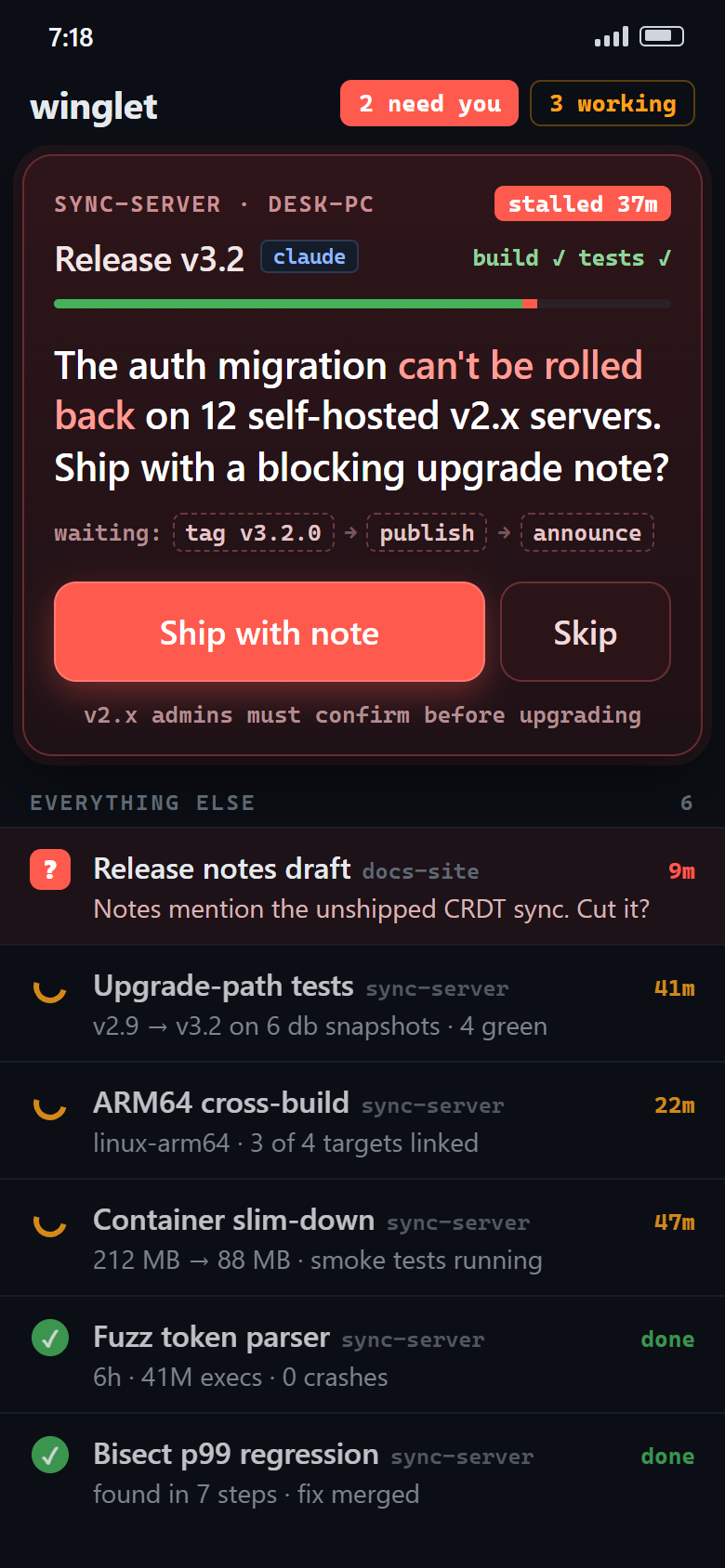
Phone view with two agents needing you and three working. A release question appears first, above the remaining agents.

Tests, ports, branches, CI: each in yet another window you have to go and look at.

Keep the readouts you check in the same window.

Your test results, beside your agents.

Put a live readout next to your agents using a script in any language. Start with bundled examples for test results, git worktrees or conversation status. Plugins that include code wait for your approval before running. The image shows possible custom panels, not a list of bundled integrations. How to add a plugin.
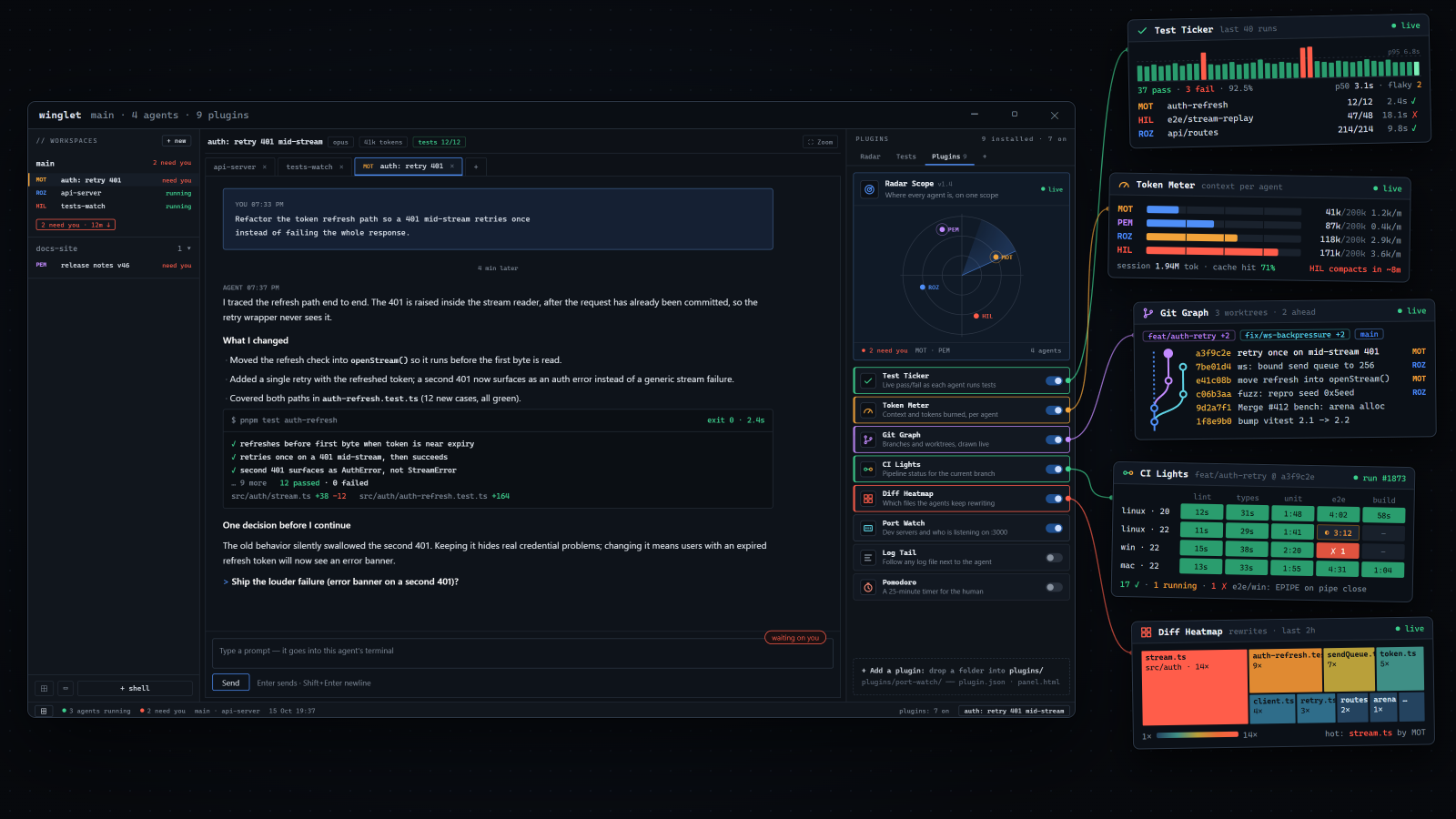
Plugin panels for test results, token usage, worktrees and CI status beside an agent conversation.
Before you install

Will it fit your setup?

A Windows desktop appWindows 10 1809+ or 11. Your terminal sessions survive a window restart.
Runs what you already runRun Claude Code, Google Antigravity, PowerShell, bash or CMD. Connect to your own hosts over SSH.
Free to use, closed sourceNo account or paywall. The source is not public.
Your data stays localwinglet stores your sessions and project data on your PC, with no telemetry or code proxy. Your agents still use their configured model services.
Read the agent's own wordsThe reading view does not rewrite or summarize. AI catch-up lines are opt-in and labeled; side chat is planned.
Share project decisionsAgents in the same project can read and update the same backlog, notes and decisions.

Try the cockpit demo

Free to use. No account, no telemetry.

Windows 10 1809+ / 11 · No telemetry · No account